UIKit - iOS 27 and WWDC26
What's New in UIKit
iOS 27 makes UIKit modernization less optional. Existing apps need scene-based lifecycle, runtime-size-aware layout, fewer main-screen assumptions, and a review of tab bars, navigation bars, menus, drag interactions, and Siri context.
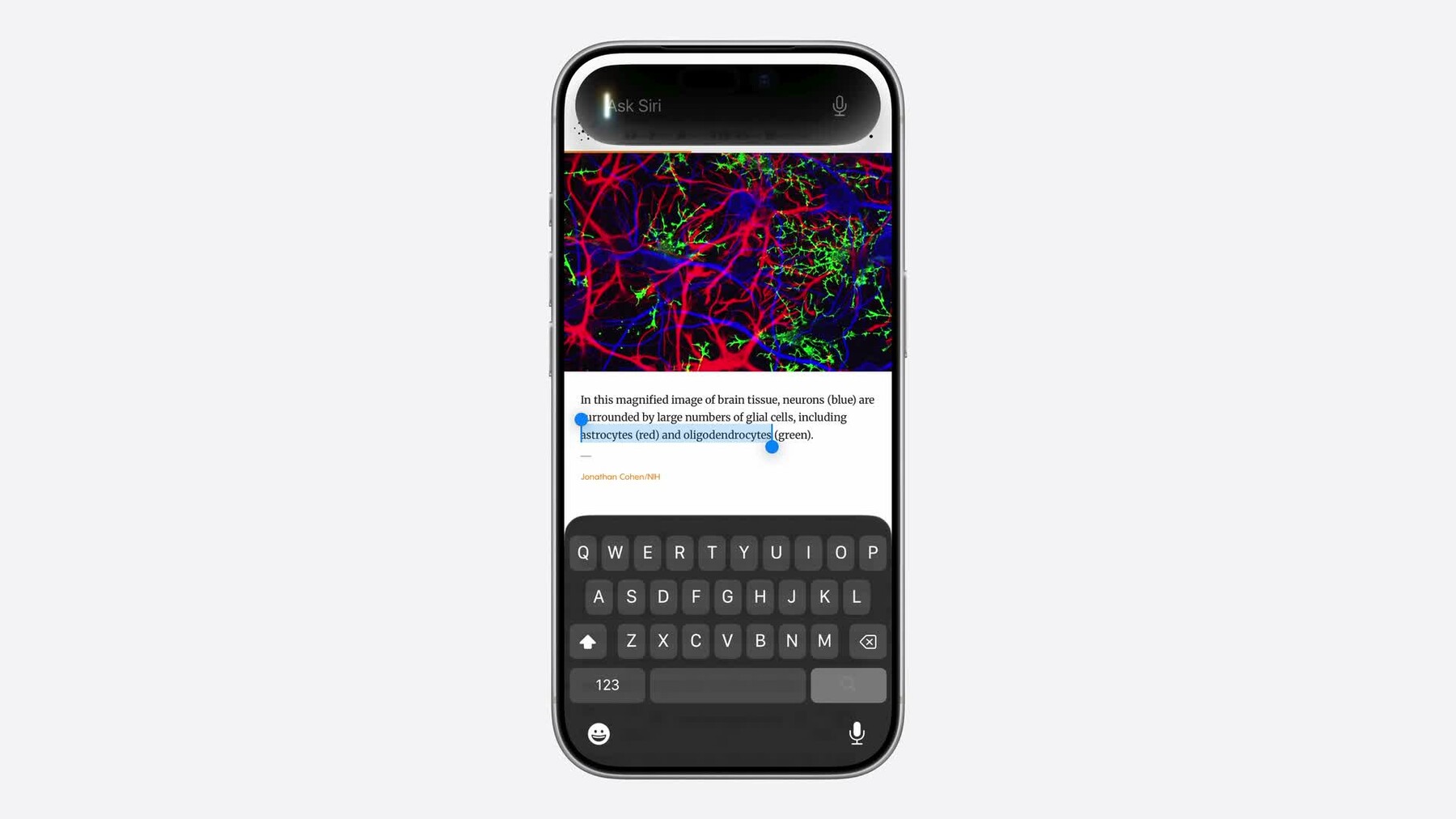
Table of contents
Resizable iPhone apps expose old layout assumptions in iPhone Mirroring, on iPad, and on external displays.
Scene lifecycleApps built with the latest SDK need UIKit scene lifecycle; AppDelegate-only UI setup is now a launch risk.
No main screen layoutReplace UIScreen.main scale and bounds reads with traits, scene geometry, or local view bounds.
Tab sidebars, prominent tabs, navigation bar minimization, scroll-edge visuals, and image visibility all changed.
Siri contextMenus can show Ask Siri, and UIKit drag handlers may be used to load context without a direct drag gesture.
ChecklistA compact migration pass for existing UIKit codebases before building with the iOS 27 SDK.
Why UIKit Apps Need Attention in iOS 27
The most important UIKit change is not a single class. It is the environment your app now runs in. In iOS 27 and macOS 27, iPhone apps can be fully resized in iPhone Mirroring on Mac, and iPhone-only apps running on iPad can be fully resizable like iPad apps. That means code that quietly assumed "one fixed phone screen" now has to respond to a changing scene size at runtime.
Universal apps already have some of the right instincts, but UIKit code often still carries older shortcuts:
UIScreen.main.bounds, UIScreen.main.scale, phone-versus-pad branches,
orientation math, and launch-time singleton state. The iOS 27 work is to make those assumptions local,
scene-aware, and driven by actual available space.
The practical audit is small but deep: scene lifecycle, main screen references, idiom checks, orientation checks, bar behavior, menu imagery, drag delegates, and real resize testing.
UIScene Lifecycle Is Required
Scene lifecycle is the foundation for adaptive UIKit apps because a process can host multiple UI scenes, and each scene can have its own activation state, window, screen, geometry, and role. In iOS 27, Apple says UIKit apps built with the latest SDK must adopt scene lifecycle; without it, the app no longer launches.
Fallback for OS 26
Scene lifecycle is not just an iOS 27 fallback. Migrate the app architecture while you still support older
OS versions. Keep process-wide services in UIApplicationDelegate, and move UI window setup and
foreground/background UI reactions into UISceneDelegate or UIWindowSceneDelegate.
@main
final class AppDelegate: UIResponder, UIApplicationDelegate {
    func application(
        _ application: UIApplication,
        configurationForConnecting connectingSceneSession: UISceneSession,
        options: UIScene.ConnectionOptions
    ) -> UISceneConfiguration {
        let configuration = UISceneConfiguration(
            name: "Default",
            sessionRole: connectingSceneSession.role
        )
        configuration.delegateClass = SceneDelegate.self
        return configuration
    }
}

final class SceneDelegate: UIResponder, UIWindowSceneDelegate {
    var window: UIWindow?

    func scene(
        _ scene: UIScene,
        willConnectTo session: UISceneSession,
        options connectionOptions: UIScene.ConnectionOptions
    ) {
        guard let windowScene = scene as? UIWindowScene else { return }

        let window = UIWindow(windowScene: windowScene)
        window.rootViewController = RootTabController()
        window.makeKeyAndVisible()
        self.window = window
    }
}
Treat every UI concern as scene-local. If code asks "what is the current window?", it probably needs to be passed a window, view controller, scene, or trait environment instead of reaching through global app state.
Replace UIScreen.main Assumptions
UIScreen.main still means the device's main screen. That is not necessarily the screen your scene
is using. A mirrored iPhone app can be running in a resizable Mac window, and an iPad scene can move to another
display. If you truly need a screen, start from the window scene that owns the UI.
// Before
let scale = UIScreen.main.scale
let targetSize = UIScreen.main.bounds.size

// Better when you really need the screen object
let screen = view.window?.windowScene?.screen

func generateThumbnail(_ image: UIImage, screen: UIScreen) -> UIImage {
    let format = UIGraphicsImageRendererFormat()
    format.scale = screen.scale
    // Render using the screen that owns this scene.
    return image
}
In most layout and rendering code, remove the screen dependency altogether. The next two sections cover the replacements Apple called out: trait collection display scale for pixel work, and effective scene geometry or local view bounds for available space.
effectiveGeometry and Available Scene Space
UIWindowScene.effectiveGeometry gives the current geometry for the scene in system space. Apple
documents it as KVO-compliant and recommends observing it for window-scene geometry changes caused by people
resizing a window or by the system resolving a geometry request.
final class SceneDelegate: UIResponder, UIWindowSceneDelegate {
    func windowScene(
        _ windowScene: UIWindowScene,
        didUpdateEffectiveGeometry previousEffectiveGeometry: UIWindowScene.Geometry
    ) {
        let geometry = windowScene.effectiveGeometry
        let availableSpace = geometry.coordinateSpace.bounds.size

        dashboardModel.updateAvailableSceneSize(availableSpace)
    }
}
Use scene geometry for scene-level decisions: choosing a root container, updating a global layout model, or coordinating content that spans multiple windows. Inside a view controller, prefer the view hierarchy. It is usually more correct because the view might be embedded in a split view, sheet, popover, column, or child container where the scene size is larger than the actual content area.
final class GalleryViewController: UIViewController {
    override func viewDidLayoutSubviews() {
        super.viewDidLayoutSubviews()

        let availableSize = view.bounds.size
        gridLayout.updateColumnCount(for: availableSize)
    }
}
Display Scale Belongs in the Trait Collection
For image caches, drawing, and pixel snapping, replace UIScreen.main.scale with
traitCollection.displayScale. UIKit updates trait collections for views and view controllers, and
common override points participate in automatic trait tracking.
final class ThumbnailView: UIView {
    override func layoutSubviews() {
        super.layoutSubviews()

        let scale = traitCollection.displayScale
        imageLayer.contentsScale = scale
        cache.prepareVisibleTiles(scale: scale, bounds: bounds)
    }
}
Automatic trait tracking means UIKit can notice trait reads in supported methods such as layout and drawing hooks, then call the method again when a tracked value changes. Use explicit registration when the trait drives state outside those tracked methods, such as a cache, renderer, or data object.
final class GalleryView: UIView {
    private let cache = ThumbnailCache()

    override init(frame: CGRect) {
        super.init(frame: frame)

        registerForTraitChanges([UITraitDisplayScale.self]) {
            (view: GalleryView, previousTraitCollection: UITraitCollection) in
            view.cache.invalidate()
        }
    }

    required init?(coder: NSCoder) {
        fatalError("init(coder:) has not been implemented")
    }
}
Fallback for OS 26
If you already support iOS 17 or later, registerForTraitChanges is available. For older
deployment targets, keep the legacy traitCollectionDidChange path in a small compatibility
branch and remove it when your minimum OS allows.
Replace Idiom and Orientation Layout Logic
User interface idiom is no longer meaningful for layout decisions in the environments Apple is pushing in iOS 27. An iPhone app can be resizable on iPad or in iPhone Mirroring while still reporting the phone idiom. The app should use extra space meaningfully regardless of whether the idiom says phone or pad.
// Before
if traitCollection.userInterfaceIdiom == .pad {
    showPersistentSidebar()
}

// After
if traitCollection.horizontalSizeClass == .regular,
   view.bounds.width >= 700 {
    showPersistentSidebar()
} else {
    collapseNavigation()
}
Interface orientation has the same problem. In resizable environments, supported orientations are treated as a preference. In iPhone Mirroring on Mac, Apple says apps always run in portrait interface orientation regardless of scene aspect ratio. Use size classes and bounds changes instead.
override func viewDidLayoutSubviews() {
    super.viewDidLayoutSubviews()

    let isWide = view.bounds.width > view.bounds.height
    detailPane.isHidden = !isWide || view.bounds.width < 680
}
Resizable iPhone Apps and iPhone Mirroring
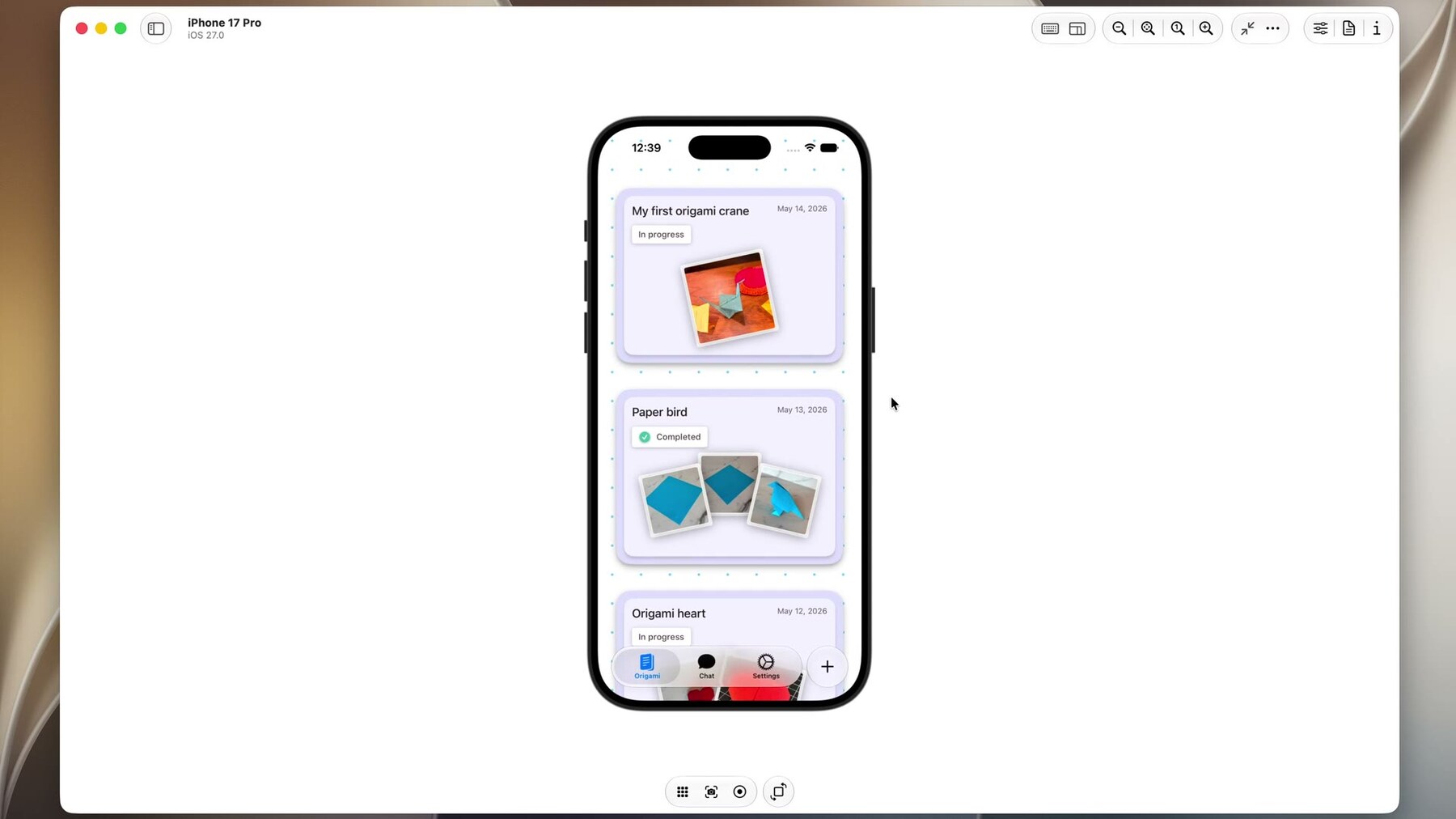
The new adaptivity pressure comes from two places: iPhone Mirroring on macOS 27, and iPhone-only apps running on iPad. In both cases, the scene can expose dynamic size changes that older iPhone layouts never tested. Apple recommends testing with real iPhone Mirroring and iPad hardware after iterating in Xcode 27.
The migration pattern is not "make an iPad app overnight." It is more mechanical: stop calculating from the physical screen, make containers reflow at arbitrary widths, ensure launch screens meet current requirements, and verify indirect input. Apple's iPhone Mirroring technote also points developers at testing and indirect input concerns, including games that need pointer handling through Game Controller.
UIRequiresFullscreen for Games
Apple called out games because free resizing can be expensive for rendering pipelines. Starting in iOS 27,
UIRequiresFullscreen is honored on iPhone in resizable environments, but it no longer fully opts
the app out of resizing. Instead, it enables discrete resizing that respects supported interface orientations.
In practice, a game should still prepare for scene size changes. The difference is that the system transitions between supported configurations so the renderer can keep full quality in the available space. Keep the render target, HUD layout, and input hit regions tied to the scene or view size, not the historical phone bounds.
Fallback for OS 26
Keep the existing full-screen policy for older releases, but do not rely on it as a layout API. Test the same rendering path with resized simulator windows before turning on the iOS 27 SDK.
UIView as a Motion and Heading Body
In iOS 27, UIView conforms to new Body protocols from Core Motion and Core Location. That lets
you connect a motion or heading manager to the view that visualizes the data, keeping the coordinate space
aligned even when the scene's aspect ratio changes or the interface orientation value is not useful.
import CoreLocation
import CoreMotion
import UIKit

final class CompassViewController: UIViewController {
    private let motionManager = CMMotionManager()
    private let locationManager = CLLocationManager()

    override func viewDidLoad() {
        super.viewDidLoad()

        motionManager.deviceMotionBody = view
        locationManager.headingBody = view
    }
}
Use this for UI that visualizes device attitude, heading, maps, augmented overlays, or compass-like controls. It is a better model than manually correcting for orientation because the body is the view that owns the visualization.
Tab Bars, Sidebars, and Prominent Tabs
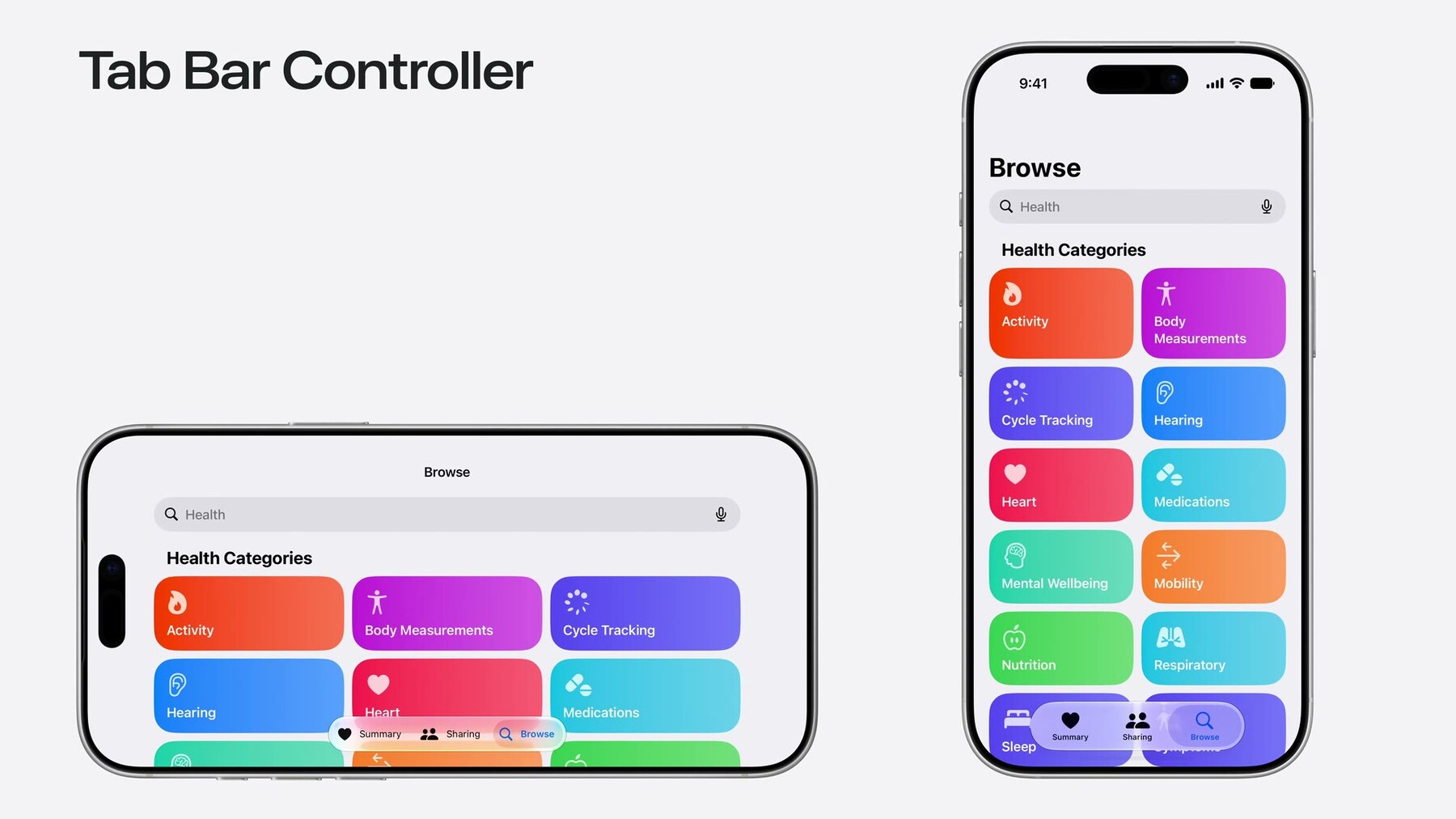
UIKit's modern tab model keeps moving toward a tab/sidebar continuum. The UITabBarController.sidebar
property itself dates back to iOS 18, but iOS 27 adds the important iPhone behavior: when the sidebar and tab
bar are mutually exclusive, sidebar.preferredPlacement lets an iPhone app opt into the sidebar
representation.
final class RootTabController: UITabBarController {
    override func viewDidLoad() {
        super.viewDidLoad()

        sidebar.preferredPlacement = .sidebar
    }

    private func updateForSidebarAvailability() {
        if sidebar.isAvailable {
            showGroupLandingPages()
        } else {
            exposeNestedContentInCurrentTab()
        }
    }
}
The system still decides if a sidebar can actually appear, often based on available horizontal space. Check
sidebar.isAvailable before hiding fallback UI behind nested tabs or sidebar-only landing pages.
Apple documents a delegate notification for sidebar availability changes, so do not treat availability as a
one-time launch value.
iOS 27 also lets a tab bar controller choose the prominent tab with
prominentTabIdentifier. The prominent tab gets enhanced visual emphasis where supported and stays
visible when the tab bar collapses during scrolling. If no explicit identifier is set, Apple says an eligible
UISearchTab can receive the prominent treatment by default when it automatically activates search.
let cartTab = UITab(
    title: "Cart",
    image: UIImage(systemName: "cart"),
    identifier: "cart"
) { _ in
    CartViewController()
}

let tabs = [browseTab, searchTab, cartTab]
let tabBarController = UITabBarController(tabs: tabs)
tabBarController.prominentTabIdentifier = "cart"
Fallback for OS 26
Keep the existing bottom tab bar and provide alternate entry points for sidebar-only hierarchy. Use
availability wrappers around preferredPlacement, isAvailable, and
prominentTabIdentifier so the OS 27 code path stays small and obvious.
Navigation Bars and Menu Images
Navigation bars can interactively minimize while scrolling, giving content more room. By default, the system
determines when this happens. In the current beta documentation, the property is
UINavigationItem.barMinimizeBehavior, with values such as .automatic,
.never, .onScrollDown, and .onScrollUp.
final class ArticleViewController: UIViewController {
    override func viewDidLoad() {
        super.viewDidLoad()

        navigationItem.barMinimizeBehavior = .onScrollDown
        navigationItem.barMinimizationSafeAreaAdjustment = .disabled
    }
}
Leave the behavior automatic unless you have a strong product reason. If your layout already manages top
insets manually, set barMinimizationSafeAreaAdjustment so the system does not also reflow your
safe area. Current DocC lists .automatic, .enabled, and .disabled.
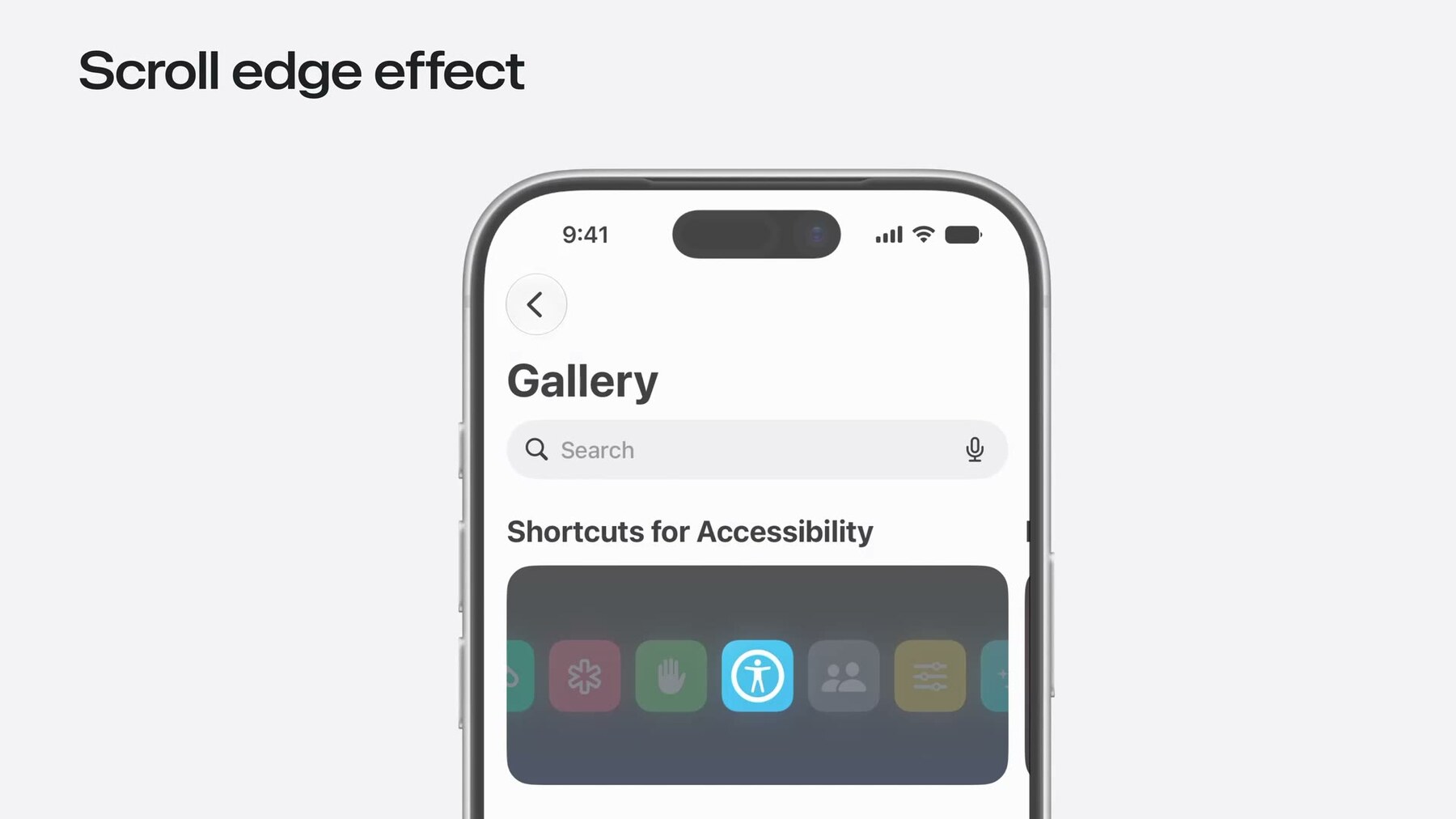
Scroll-edge appearances
Apple also changed scroll-edge effects. The .automatic style no longer just switches between the
older soft and hard styles; it has its own visuals for additional clarity. If a UIKit app overrode automatic
to force .soft, review that decision against the iOS 27 Liquid Glass defaults.
Menu image visibility
Liquid Glass also affects menus. Images on menu elements may be hidden by default in some contexts, including
menu bars on iPadOS and macOS. If an icon is essential for recognition, set
preferredImageVisibility. The new UIMenuElement.ImageVisibility enum has
.automatic, .hidden, and .visible.
let export = UIAction(
    title: "Export",
    image: UIImage(systemName: "square.and.arrow.up")
) { [weak self] _ in
    self?.exportDocument()
}

export.preferredImageVisibility = .visible

let menu = UIMenu(
    title: "Document",
    image: UIImage(systemName: "doc"),
    preferredImageVisibility: .hidden,
    children: [export, delete]
)
Do not turn every menu back into an icon grid. Apple's updated menu guidance is to reserve visible images for items where the image helps scanning or disambiguation.
Ask Siri, View Annotations, and Drag Context
iOS 27 menus can automatically show an Ask Siri button when there is content relevant for Siri. UIKit does not ask every app to add a button manually. The better work is to make on-screen content understandable through App Intents and the new View Annotations API, which lets you annotate specific views with App Entities.
There is also a UIKit-specific caution for apps that support drag and drop. When Apple Intelligence is invoked
from context menus, the system can call available drag delegate methods to load content. Drag sessions can be
initiated without a direct user drag gesture. Avoid starting animations, presenting modal UI, or making
user-visible state changes in sessionWillBegin. Move UI that depends on a real drag gesture into
sessionDidMove.
final class DocumentDragDelegate: NSObject, UIDragInteractionDelegate {
    func dragInteraction(
        _ interaction: UIDragInteraction,
        itemsForBeginning session: UIDragSession
    ) -> [UIDragItem] {
        let provider = NSItemProvider(object: currentDocument.summary as NSString)
        return [UIDragItem(itemProvider: provider)]
    }

    func dragInteraction(
        _ interaction: UIDragInteraction,
        sessionWillBegin session: UIDragSession
    ) {
        // Keep this side-effect-free. Siri context loading may reach drag handlers
        // without the user starting a visible drag.
    }

    func dragInteraction(
        _ interaction: UIDragInteraction,
        sessionDidMove session: UIDragSession
    ) {
        showDragAffordanceIfNeeded()
    }
}
Device Hub and Preview Resize Testing
Xcode 27 adds resize workflows in the new Device Hub app and in Xcode Previews. Apple's UIKit session shows a resize mode where you drag device edges freely, so a single simulator or preview can exercise many scene sizes without switching devices.
Use this as a fast inner loop, not as the final answer. After the layout feels good, test the same app through iPhone Mirroring on macOS 27 and on iPad hardware. You are looking for issues that previews do not always show: pointer input, external display behavior, keyboard focus, scene activation, launch screen sizing, and memory pressure while repeatedly resizing.
Xcode 27's Modernization Skill
Xcode 27 includes an app modernization skill for agentic coding workflows. Apple says it can convert main
screen calls to trait collection or scene bounds checks, add invalidation logic, replace orientation checks
with size class checks, and even migrate an app to scene lifecycle. Skills can be exported for other tools with
xcrun agent skills export.
// Terminal
xcrun agent skills export
Treat the skill as a first pass, not a final review. Automated edits can find obvious
UIScreen.main and orientation checks, but humans still need to review product decisions:
when a compact layout should become two columns, what content belongs in a sidebar, whether a navigation bar
should minimize, and which drag handlers are safe for Siri context loading.
Migration Checklist
| Area | What to check | Preferred replacement |
|---|---|---|
| Lifecycle | AppDelegate-only UI setup or missing scene manifest | UISceneDelegate and UIWindowSceneDelegate |
| Screen scale | UIScreen.main.scale in drawing, caches, thumbnails |
traitCollection.displayScale and trait-change invalidation |
| Screen bounds | UIScreen.main.bounds for available app space |
windowScene.effectiveGeometry or local view.bounds |
| Idiom | Phone-versus-pad branches that choose layout | Size classes, view bounds, and content needs |
| Orientation | Portrait/landscape branches for layout | Bounds changes and supported size classes |
| Games | Full-screen assumptions and fixed render targets | Scene-size-aware renderer, with UIRequiresFullscreen only as policy |
| Tabs | Sidebar-only content hidden when sidebar is unavailable | sidebar.isAvailable and alternate in-tab entry points |
| Navigation | Custom top inset logic during bar minimization | barMinimizeBehavior and barMinimizationSafeAreaAdjustment |
| Menus | Icons that are required for comprehension | preferredImageVisibility only where the image earns its space |
| Siri context | Drag delegates with modal UI or animation in sessionWillBegin |
Side-effect-free loading; visible drag UI in sessionDidMove |
Sources
- WWDC26 session 278: Modernize your UIKit app
- UIKit documentation updates
- UIWindowScene effectiveGeometry
- UITabBarController.Sidebar preferredPlacement
- UITabBarController.Sidebar isAvailable
- UITabBarController prominentTabIdentifier
- UINavigationItem barMinimizeBehavior
- UINavigationItem barMinimizationSafeAreaAdjustment
- UIMenuElement preferredImageVisibility
- WWDC26 session 260: Get the most out of Device Hub
- WWDC26 session 343: Explore advanced App Intents features for Siri and Apple Intelligence
- WWDC26 session 272: Use SwiftUI with AppKit and UIKit
- TN3210: Optimizing your app for iPhone Mirroring
- Transitioning to the UIKit scene-based life cycle
- Adapting your app when traits change
- Automatic trait tracking
- Human Interface Guidelines: Menus